








North Way App


North Way App How To's
Account
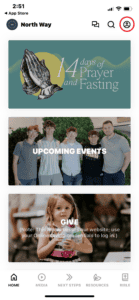
- After downloading the app, click the profile icon in the top right.
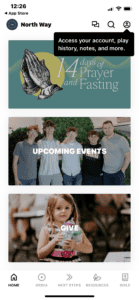
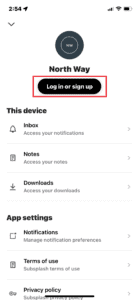
- Select Log in or sign up.
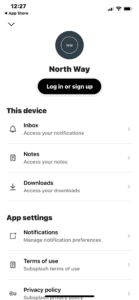
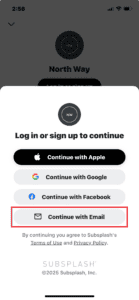
- At the Log in or sign up to continue screen, select Continue with Email (preferred). (Note: Your account is tied to your email address, which allows you to use multiple authentication methods (Apple, Google or Email) but Email is preferred.)

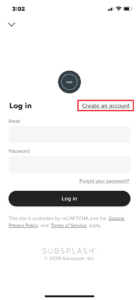
- Select Create an account.
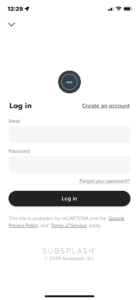
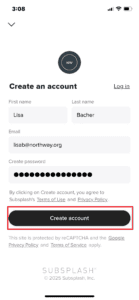
- Enter your name, email and password. Select Create account.
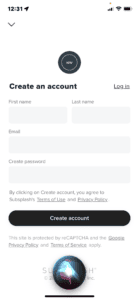
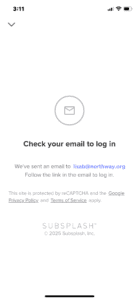
- Follow the instructions on Check your email to log in screen.
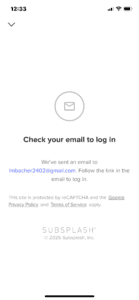
- Open the email from Subsplash and confirm email address.
- Follow the prompts on the NW app home screen.
Once you're logged into your account, you'll be able to edit your profile, reset your password, or delete your account.
Edit Profile
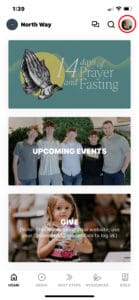
- Click your initials in the profile icon (top right corner).
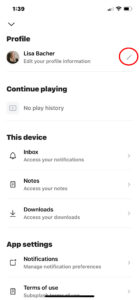
- Under Profile, click the pencil icon.
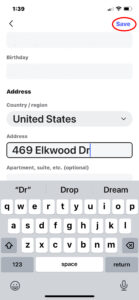
- If desired, upload a photo, and complete the Personal details and Address sections then select Save (top right corner).
Reset Your Password
- Enter your old password.
- Enter a new password. Re-enter new password.
- Click Set password.
If, for some reason, you log out and forget your password:
- Click the profile icon in the top right corner.
- Select Log in or sign up.
- Select Continue with Email.
- At the Log in screen, select Forgot your password?
- Follow the prompts.
Delete Account
Once you're at your edit profile page, simply scroll to the bottom of the page and select the red button that says, Delete Account.
Click the profile icon in the top right corner.
Select the pencil icon to the right of Edit your profile information.
Make your changes and Save.
Groups & Messaging
If invited to a group it is very important to accept the invite from your email in order to join the group and begin messaging.
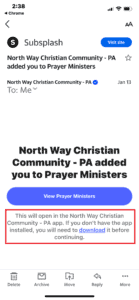
To accept this invite, you will want to make sure you open the email you received and then just follow the instructions therein as pictured below:
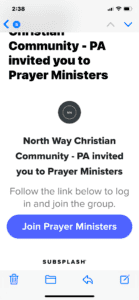
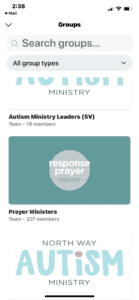
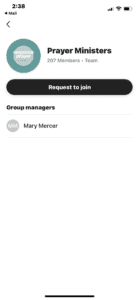
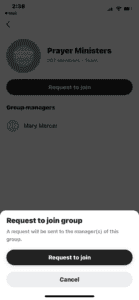
Invites will expire after 5 days, so be sure to keep your eyes out for them. If your invite is not working, just reach out to us and we can get another one sent to you!
To create an account on the NW app, select the download link.
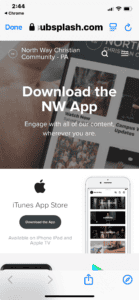
Select Download the App from the Apple Store or the Google Play Store.
After installing the NW app on your device, open the app and select the profile icon in the top right corner.
Select Log in or sign up.
Select Continue with Email.
Select Create an account.
Complete Name, Email (be sure to use the email from your group invitation) and Password. Select Create account.
Follow the link in your email to log in.
In your email inbox, open email from Subsplash and confirm email address.
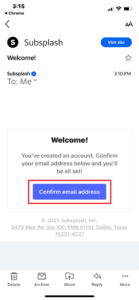
After confirming your email, select Continue.
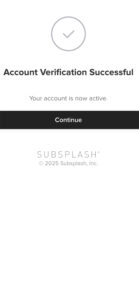
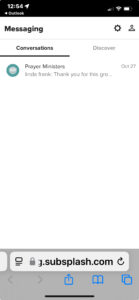
You will be directed to the Messaging section of the app.
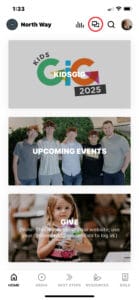
Select the messaging icon in the top right corner of the app.
Under Conversations, select your group to view messages.
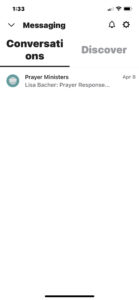
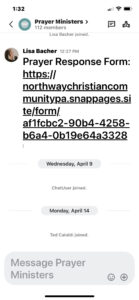
Note: Only group members can view or send messages. If you haven’t been invited to a group, you can request to join one by following these steps:
-
Tap the messaging icon in the top-right corner.
-
Select Discover.
-
Scroll through the list to find your desired group and click Request to Join.